WiFi✯
The buildings are equipped with WiFi access points. You can connect to them via the international university network (eduroam network).
Eduroam Configuration✯
A tutorial to connect to the EDUROAM WiFi network is available here: https://confluence.dsi.uca.fr/pages/viewpage.action?pageId=53444956
If it does not work, the configuration to use is as follows:
- SSID: eduroam
- EAP Method: PEAP
- Phase 2 Authentication: MSCHAPv2
- Server CA Certificate: Default
- User Certificate: None Installed
- Domain: uca.fr (if requested)
- Identity: UCA Login
- Password: UCA Password
- Anonymous Identity: Empty
Eduroam CAT Configuration Tool
You can use the Eduroam CAT (Configuration Assistant Tool) tool. It is a utility to facilitate connecting to Eduroam. It is available for common operating systems (MacOS, iOS, Android, Linux, Windows...)
Go to: https://cat.eduroam.org
-
Click on "Eduroam Users: download the eduroam installer" or "Click here to download your EDUROAM installer"
-
Select the Université Clermont Auvergne or your home university.
-
Click on the proposed installer or choose another one using the link just below.
-
Run the proposed script
Connecting outside the UCA
If the connection does not work outside the UCA with the Eduroam CAT tool configuration, try filling the Anonymous Identity field with anonymous.uca.fr.
Issues✯
The coverage area is substantial and correct, but several factors cause disruptions based on our observations.
Disruptions related to multiple WiFi access points✯
Many students use their phone as an access point, which generates congestion on WiFi bandwidths.
WiFi does not guarantee that a client will have access to an access point if another client closer to the access point and consuming bandwidth blocks access.
Quickly, a negative spiral can develop. A user uses their access point and blocks others who will then use their access points...
Everyone must act responsibly and understand that their use of access points can potentially disrupt others.
Disruptions related to certain frequency bands✯
The 2.4 GHz frequency band is generally less prone to disruptions than the 5 GHz band.
Disruptions related to the positioning of certain access points✯
We are currently testing the performance of access points in relation to their positioning and number.
What to do?✯
-
Ask access point users to turn them off, explaining the issue
-
Report the most detailed information possible (date and time, room, issue encountered) via a ticket on support.isima.fr and for students, prefer the Discord server of ISIMA
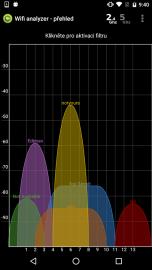
Tools like WifiAnalyzer (for Android, Windows10) allow you to observe network overlaps and signal quality for each network.
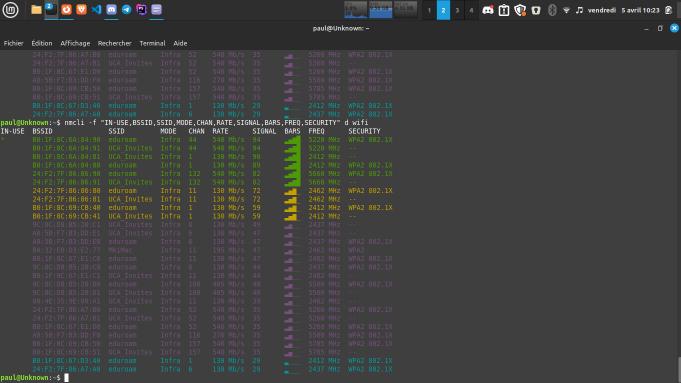
On Linux, you can use nmcli for the same purpose
sudo apt-get install network-manager
sudo systemctl start NetworkManager.service
sudo systemctl enable NetworkManager.service

nmcli -f “IN-USE,BSSID,SSID,MODE,CHAN,RATE,SIGNAL,BARS,FREQ,SECURITY” d wifi