GitLab CI/CD Integration✯
This page explains how to use the registry.isima.fr registry from your GitLab pipelines:
- Push an image built by the pipeline
- Pull an image from the registry in a job
- Use a registry image as a job image
- Use a registry image as a service (database, etc.)
Turnkey « boilerplate » project
To get started quickly, take inspiration from the boilerplate repository maintained by the CRI: cri-public/gitlab-ci-registry-boilerplate. It provides an out-of-the-box .gitlab-ci.yml that builds an image and pushes it to registry.isima.fr. Fork it or copy its pipeline, then adapt the Harbor project name and your image name.
Configure Harbor Integration✯
Access to the registry from GitLab is done via the native Harbor integration. Once configured, GitLab automatically injects the registry credentials into all project pipelines, without having to manually create variables.
Prerequisite: a robot account
Never use your personal CLI secret. First create a dedicated robot account for the project, with strictly necessary permissions (Pull to retrieve, Pull + Push to publish).
- In your GitLab project, open Settings > Integrations
- Select Harbor
- Check Active and fill in:
- Harbor URL:
https://registry.isima.fr - Harbor project name: your project name in Harbor (e.g.
my-project) - Username: the identifier of a robot account (e.g.
robot$my-project+gitlab-ci) - Password: the secret of the robot account
- Harbor URL:
- Click Test settings and save changes
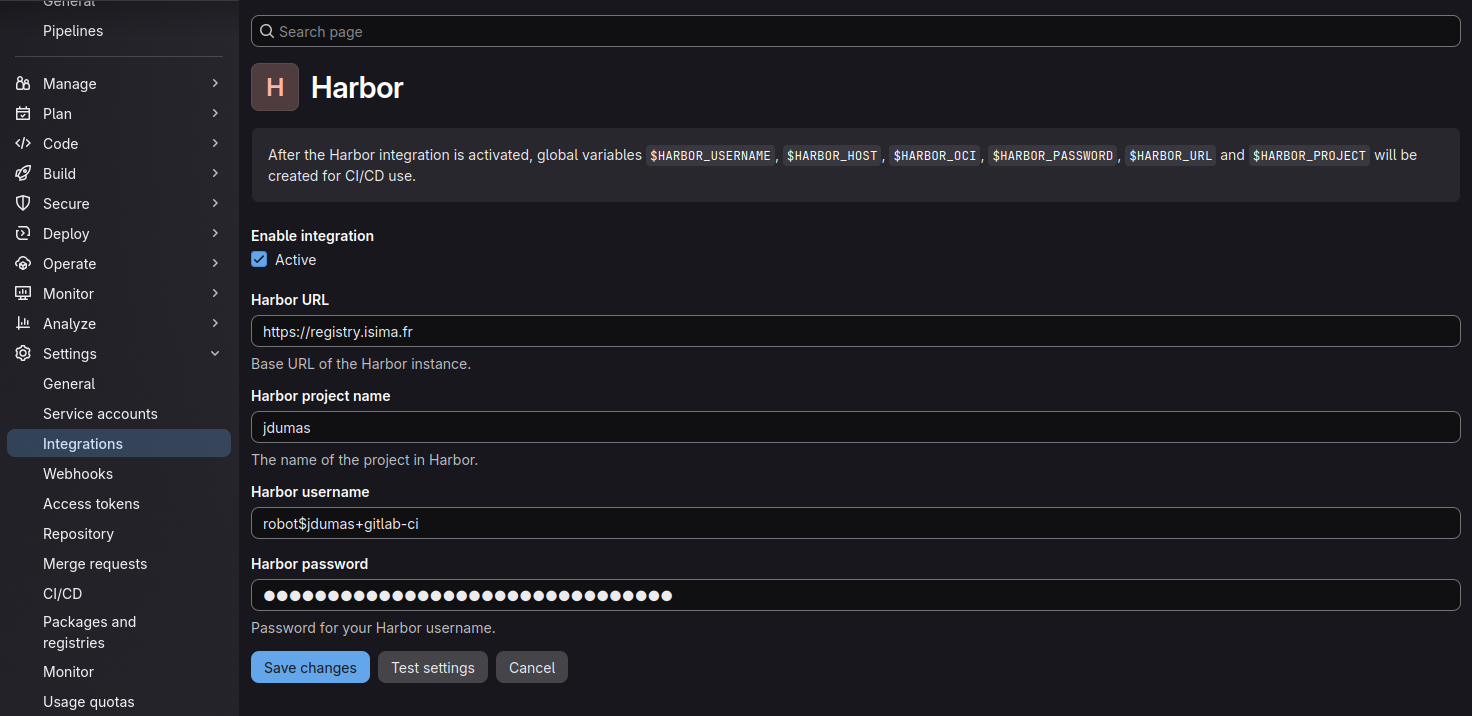
The integration then automatically exposes the following CI/CD variables to your jobs:
| Variable | Content |
|---|---|
$HARBOR_URL |
Full registry URL (https://registry.isima.fr) |
$HARBOR_HOST |
Registry hostname (registry.isima.fr) |
$HARBOR_PROJECT |
Configured Harbor project name |
$HARBOR_USERNAME |
Identifier (the robot account) |
$HARBOR_PASSWORD |
Associated secret |
$HARBOR_OCI |
OCI URL (oci://registry.isima.fr), useful for Helm charts |
Group-level configuration
The integration can be set once at the GitLab group level to be inherited by all its projects. A project-level configuration takes precedence over the group one.
Use a robot account, not your personal one
The credentials entered in the integration are accessible to all project pipelines. Use a robot account with limited permissions, and ensure that a malicious .gitlab-ci.yml cannot exfiltrate $HARBOR_PASSWORD (unprotected variable visible in unprotected branches).
Robot permissions for integration✯
In general, the same robot account is used both for pull/push in the pipeline and to feed the Harbor Registry view (which queries the Harbor API to list the project content). Grant it the following permissions:
| Resource → Action | Role |
|---|---|
| Repository → Pull | Retrieve images in the pipeline |
| Repository → Push | Push images from the pipeline |
| Repository → List | List repositories in the Harbor Registry view |
| Artifact → List + Read | List and detail artifacts |
| Tag → List | List artifact tags |
List/Read ≠ Pull/Push
Read actions (List, Read) are distinct from image actions (Pull, Push): a robot capable of pushing images cannot list repositories/artifacts/tags unless the List/Read permissions are explicitly checked. Without them, the Harbor Registry view remains empty.
Scan results not available
The GitLab Harbor integration does not display vulnerability scanner results. Therefore, there is no need to grant the robot Scan permissions for this use: these reports are consulted in the registry web interface.
Viewing artifacts from GitLab✯
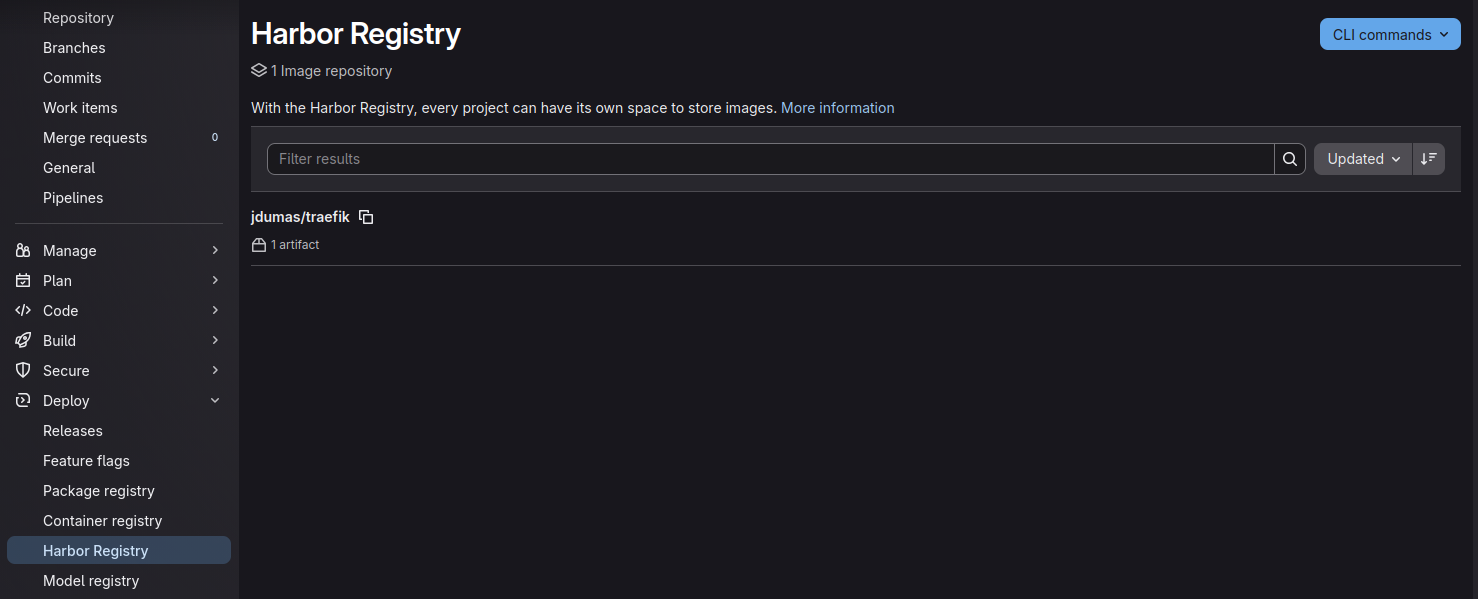
Once the integration is active, a Harbor Registry menu (under Deploy / Operate) appears in your GitLab project. It lists the repositories and artifacts of the associated Harbor project, without leaving the GitLab interface.
Push an image from a pipeline✯
Complete example building an image with Docker-in-Docker (dind) and pushing it to the registry, tagged with the commit short SHA then latest. The $HARBOR_* variables come from the Harbor integration:
build-image:
  stage: build
  image: docker:27
  services:
    - docker:27-dind
  variables:
    IMAGE: $HARBOR_HOST/$HARBOR_PROJECT/my-app
  before_script:
    - echo "$HARBOR_PASSWORD" | docker login "$HARBOR_HOST" -u "$HARBOR_USERNAME" --password-stdin
  script:
    - docker build -t "$IMAGE:$CI_COMMIT_SHORT_SHA" -t "$IMAGE:latest" .
    - docker push "$IMAGE:$CI_COMMIT_SHORT_SHA"
    - docker push "$IMAGE:latest"
Ready-to-use complete pipeline
A working example of this pipeline is available in the cri-public/gitlab-ci-registry-boilerplate repository: fork it to start from a base that already builds and pushes an image to the registry.
Pull an image from a pipeline✯
In a job with a Docker client, authenticate then do a pull:
deploy:
  stage: deploy
  image: docker:27
  services:
    - docker:27-dind
  before_script:
    - echo "$HARBOR_PASSWORD" | docker login "$HARBOR_HOST" -u "$HARBOR_USERNAME" --password-stdin
  script:
    - docker pull registry.isima.fr/my-project/my-app:latest
    - docker run --rm registry.isima.fr/my-project/my-app:latest --version
Use a registry image as a job image✯
GitLab can run a job inside an image from the registry (key image:). Prefer using a public image or one from the proxy cache: no authentication is then required, and the proxy cache speeds up download while avoiding public registry rate limits.
test:
  image: registry.isima.fr/dh/library/node:20
  script:
    - npm ci
    - npm test
Image from a private project
The image used as image: for a job is pulled by the runner before script execution: the Harbor integration variables are therefore not yet available at that time. To use an image from a private project, do not declare it as image: of the job but retrieve it in the script after authentication (see Pull an image from a pipeline).
Use a registry image as a service✯
Services (services:) are side containers started alongside the job — typically a database for tests. They can also come from the registry, especially from the proxy cache:
test-with-db:
  image: registry.isima.fr/dh/library/python:3.12
  services:
    - name: registry.isima.fr/dh/library/postgres:16
      alias: db
  variables:
    POSTGRES_DB: testdb
    POSTGRES_USER: runner
    POSTGRES_PASSWORD: secret
    # from the job perspective, the database is reachable on host « db »
    DATABASE_URL: "postgresql://runner:secret@db:5432/testdb"
  script:
    - pip install -r requirements.txt
    - pytest
- The
aliaskey defines the hostname by which the job accesses the service (heredb). - Prefer public service images or those from the proxy cache: as with the job image, a service is pulled by the runner before script execution.
Useful GitLab variables✯
GitLab exposes practical predefined variables for tagging your images:
| Variable | Description |
|---|---|
$CI_COMMIT_SHORT_SHA |
Short commit SHA (ideal image tag) |
$CI_COMMIT_REF_SLUG |
"Slugified" branch/tag name (usable in an image name) |
$CI_COMMIT_TAG |
Git tag, when a pipeline is triggered by a tag |
$CI_PIPELINE_IID |
Internal pipeline number within the project |