Equipment✯
Student Loan✯
Students eligible:
- ISIMA engineers (1st, 2nd, or 3rd year, students or apprentices)
- Computer Science Master's students (M1 and M2)
If you need a loaner computer, please:
- notify your training manager of your request
- create a ticket on https://support.isima.fr specifying:
- The reason for your request:
- personal hardware failure
- financial difficulties
- The reason for your request:
Please note that:
- we do not lend laptops (except for FISA apprentice engineers), headsets, microphones, or cameras
- loaned machines must be returned by July 1st at the latest
- we ask you to take good care of the equipment so that it can potentially be loaned out again to others in need
- loaned computers are "recycled" computers, meaning they allow you to work but are not as powerful as the computers in the computer lab rooms
- we offer this service on a "best effort" basis, which implies patience and politeness from the requester regardless of the outcome and the time required to process your request
Equipment Provided by ISIMA for Students✯
Depending on the period, needs, and resources, the School may also provide IT resources (PCs, Apple computers, laptops, servers, projectors, public hosting, domain names, certificates, etc.) for academic (projects, etc.) and extracurricular (clubs, associations, etc.) activities.
This means that students must use these resources responsibly, particularly regarding consumables (taking care of equipment and reporting malfunctions, considering the necessity of print jobs, preferring black and white, monitoring their processes, etc.).
The school is committed to preserving this tradition of curiosity, initiative, and courtesy.
Videoconferencing Equipment✯
You can collect videoconferencing equipment in room A109.
We have headsets with microphones (~25 available)
Headsets (Lavalier Microphones)✯
You can collect lavalier microphones designed to amplify your voice for the audience present (not useful for videoconferencing).
Use on a Personal Laptop✯
Plug the USB dongle into one of your laptop's USB ports and turn on the headset.
Make sure Bluetooth is enabled on your laptop, then configure the input sound to use the 'Samson' microphone.
The sound will play through your laptop's speakers.
Use in a Room with Speakers✯
Rooms equipped with speakers that can be used with this headset are:
- Garcia lecture hall
- Lecture halls 1, 2, 3 in the common area
- Rooms G019, G020, G103 in the common area
The operating principle is that the sound from the lavalier microphone is sent to the projector, which is connected to external speakers, and the sound will play through the speakers.
For this, the only possible connectivity is VGA. You must plug the headset's USB dongle into the computer and plug the VGA output cable connected to the projector into this same dongle.
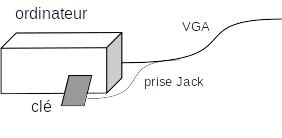
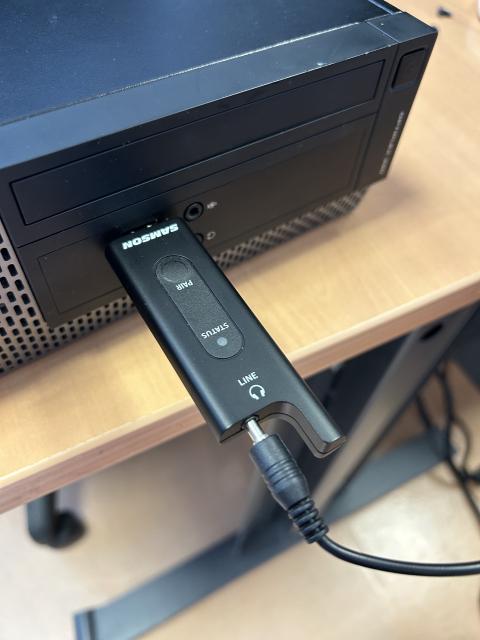
The projector must be turned on and the VGA source selected for the headset to work.
If using in parallel with a laptop without VGA connectivity, plug the headset dongle into a USB port and connect the video output to the VGA cable (provide a VGA-HDMI adapter if needed).
Distance Learning Courses✯
To organize distance learning (or hybrid in-person/distance) courses, we offer a package (10 packages in stock) including:
- webcam
- speakerphone
- graphics tablet (Wacom Intuos)
You can collect a package before the course to use on your personal computer or on the computer in the classroom.
The graphics tablet only works with a driver on Mac or Windows.
The driver can be downloaded here (see bottom of page).
It is not necessary to create an account to obtain specific software, as these are intended for a graphic designer audience.
However, it is also possible to use a Wacom with Ubuntu:
- with a graphical configuration utility included in Ubuntu settings.
- You can also download an Ubuntu software
Wacom Tablet - In case of problems, hold down the buttons on the far right and far left of the tablet for it to be properly recognized
- Troubleshooting for other issues on Ubuntu -> here
Thanks to Rodolphe for this information on using Wacom on Ubuntu
Regarding the software to use for ease of use of the tablet:
- GoodNotes (paid, Mac only)
- Xournal++ Windows Download
- Xournal++ Mac Download
- Xournal++ Linux link to different releases
On the computers in the classrooms, the Wacom driver and Xournal++ software will be installed.
Some YouTube tutorials on using the tablet with GoodNotes and Xournal (many thanks to Aurélie for these tutorials).
To Know✯
The stock of this equipment is very limited, so please follow these rules:
- if you have a webcam in your office, you must bring it to the classrooms.
- webcams/speakerphones/tablets can be borrowed from the CRI in office A109.
- make sure to return borrowed equipment to A109 at the end of your class to avoid penalizing other teachers and their students.
For traceability purposes, each borrowed item will be recorded with the following information:
- borrowed equipment
- borrower's name
- classroom name
- start date and time of the loan
- end date and time of the loan